Bulk Calendar
Send Bulk Calendar Invites Effectively for Seamless Event Planning
Sending calendar invites can be a time-consuming task, especially when dealing with numerous recipients for events or webinars. Utilizing bulk calendar invites streamlines this process, enhancing productivity and ensuring important details reach all attendees efficiently. This approach not only saves time but also helps maintain professionalism in communication.

Organizers often face challenges in crafting effective invites that capture attendees' attention. Knowing how to prepare the content and utilize the right tools can significantly increase engagement and turnout. With the right strategies, sending multiple invites can become a smooth and straightforward task that contributes to successful events.
Understanding the process and leveraging automation can take the stress out of sending calendar invites. By adopting best practices and using appropriate applications, anyone can effectively manage their event invitations while maximizing attendee participation.
Key Takeaways
- Bulk calendar invites enhance efficiency for event organizers.
- Effective content and automation tools increase attendee engagement.
- Best practices can simplify the management of responses and improve event success.
Understanding Calendar Invites
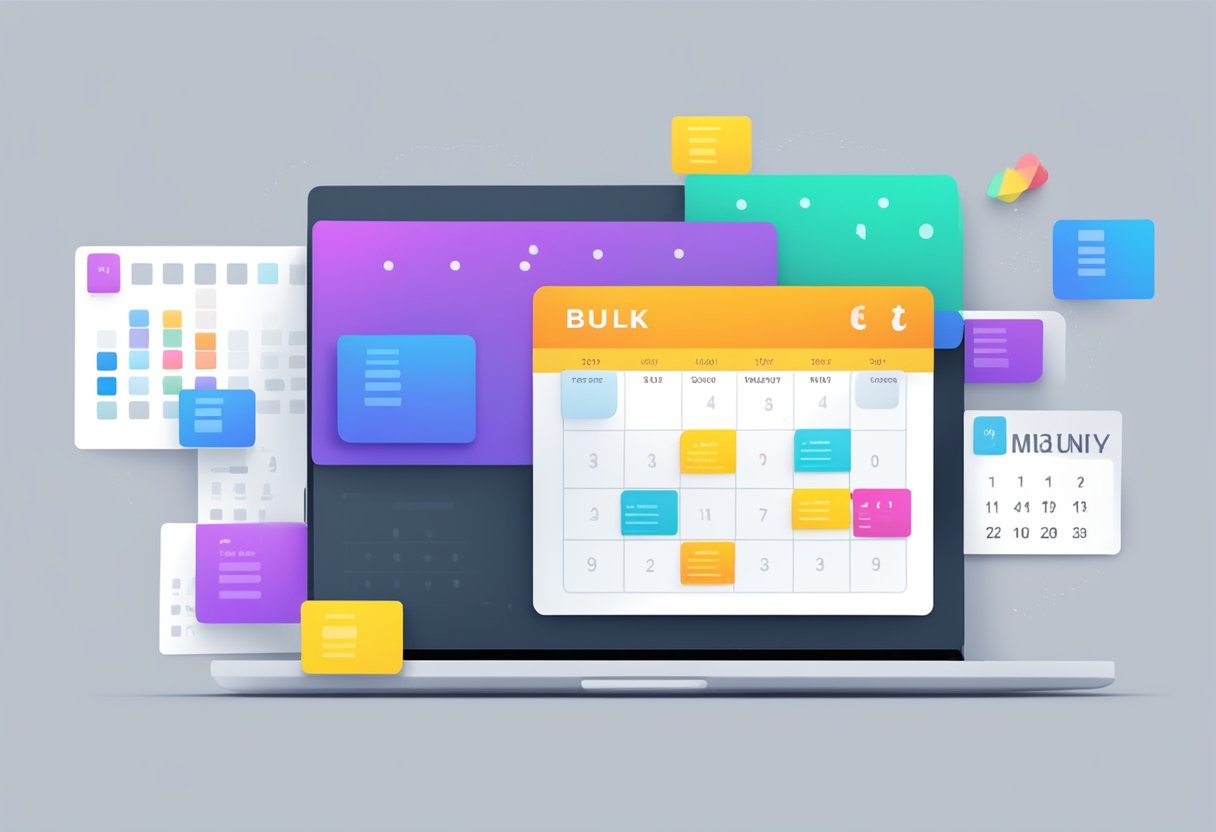
Calendar invites are essential tools for organizing meetings and events. They help ensure that all participants have the necessary information about the agenda and event details. Understanding the basics of calendar invites and their different types can streamline the process of sending bulk invites effectively.
Calendar Invite Basics
A calendar invite is a digital invitation sent to participants to inform them about an upcoming event. It includes vital details such as the date, time, location, and agenda of the event. Users can create invites in various calendar applications, including Google Calendar and Outlook.
When creating a calendar invite, it is important to fill in all relevant information. This includes specifying whether the event is a one-time occurrence or a recurring meeting. Participants can typically respond with "Accept," "Decline," or "Maybe," which helps the organizer track attendance. This functionality is particularly useful for sending bulk calendar invites, as it allows for easy coordination among many attendees.
Types of Calendar Invites
There are several types of calendar invites that one can choose from based on the event's needs. The most common types include:
-
Single Event Invites: These are for one-off meetings or events. They include all necessary details for that specific occasion.
-
Recurring Event Invites: These are designed for events that happen regularly, such as weekly team meetings. They save time, as the organizer does not need to send new invites each time.
-
Location-Based Invites: These provide specific location details, which can be crucial for in-person meetings. Including a map link or directions can enhance attendees' experience.
Understanding these types enables effective planning and communication when organizing events. It is essential to select the appropriate format to ensure all participants receive the right information and can respond accordingly.
Choosing the Right Calendar Application
Selecting a calendar application is crucial for effectively managing bulk invites. Some options offer more features for sending multiple invites securely and easily. The following applications are popular choices for organizations and individuals.
Google Calendar
Google Calendar is widely used and integrates well with Gmail. It allows users to create events and invite multiple participants in just a few clicks.
To send bulk invites, a user can:
- Create an event.
- Add all attendees' email addresses.
- Make adjustments to event details, such as time and location.
This application also allows users to set reminders and notifications, which helps in ensuring that everyone is informed about the event.
Additionally, Google Calendar is accessible from various devices, making it convenient for users to manage their schedules anywhere.
Microsoft Outlook
Microsoft Outlook is another strong choice for sending bulk calendar invites. It is already popular in many businesses and offers advanced organizational features. Users can create a calendar event and easily add a long list of recipients.
Key features include:
- Customizable meeting options, such as recurring events.
- The ability to attach files to invitations.
Outlook also provides comprehensive tracking of RSVPs, ensuring that organizers know who will attend. This is essential for planning purposes. Integration with other Microsoft Office tools adds even more value for teams that rely on them.
Let's Calendar
Let's Calendar is a powerful tool uniquely designed for sending bulk invites. It enables organizations to send a large number of calendar invites while maintaining high standards of data security and privacy.
With Let's Calendar, users can:
- Import invitee lists seamlessly.
- Customize invites, ensuring a professional appearance.
The application is ideal for events, webinars, and conferences, as it ensures all invitees receive their invitations promptly. It streamlines the process, allowing organizations to focus on event preparation instead. For more details on how it works, visit Let's Calendar.
Preparing to Send Bulk Invites
Before sending bulk calendar invites, it's crucial to have all necessary information ready. This section covers how to gather email addresses and create a detailed attendee list.
Gathering Email Addresses
Collecting email addresses is the first step in preparing to send bulk invites. Ensure that the list is accurate and up-to-date. Incorrect email addresses can lead to failed invitations.
-
Identify Attendees: Start by determining who needs to receive the invites. This may include colleagues, clients, or special guests.
-
Use Reliable Sources: Gather addresses from a company database, previous correspondence, or even a contact management system.
-
Create a Contact List: Compile the email addresses in a simple text document or directly in Excel. Ensure there are no duplicates.
-
Verify Addresses: Send a quick confirmation email to verify that the addresses are correct and active. This step helps avoid sending to outdated accounts.
Creating an Attendee List in Excel
An organized attendee list helps streamline the process of sending invites. Excel is a useful tool for managing this data.
-
Set Up Columns: Create a new Excel sheet with relevant columns. Suggested columns include Name, Email Address, and Notes.
-
Input Information: Fill in each row with the corresponding details of each attendee. This makes filtering and managing the list easier.
-
Use Filters: Excel's filtering options allow users to sort attendees by categories or groups, making it simpler to customize invites.
-
Save and Backup: Regularly save the file and create backups, especially if changes are made. This precaution ensures that important information is not lost.
By completing these preparations, the process of sending bulk calendar invites will be much smoother and more efficient.
Crafting Effective Invite Content
Creating effective content for calendar invites is essential for ensuring attendees understand event details. Clear agendas and setting expectations help keep everyone informed and engaged.
Writing a Clear Agenda
A well-written agenda gives participants a focused overview of the event. It should include key elements such as the purpose of the gathering, topics to be discussed, and the timeline. This helps attendees prepare and stay engaged from start to finish.
For example, an agenda might outline:
- Event Purpose: Introduction to new software
- Topics Covered: Features, benefits, and user feedback
- Time Allocation: Each topic, with time limits for discussion
Including the location and any necessary links is crucial. This ensures everyone knows where to go, whether it’s a physical space or a virtual meeting link. Lastly, remind attendees a day before to keep the event fresh in their minds.
Setting Expectations for Attendees
Clearly outlining what attendees can expect at the event is vital. This includes the level of participation required, whether it’s a lecture or a collaborative session.
If the event requires preparation, such as reading materials or bringing specific items, it should be stated upfront. Additional details like dress codes or required tools can enhance preparation.
Including reminders about the event a few days in advance can improve attendance. Utilize clear and concise language to ensure that every attendee knows when the event takes place and what they need to contribute. Highlighting these points helps participants feel ready and valued.
Automation Tools for Bulk Invitations
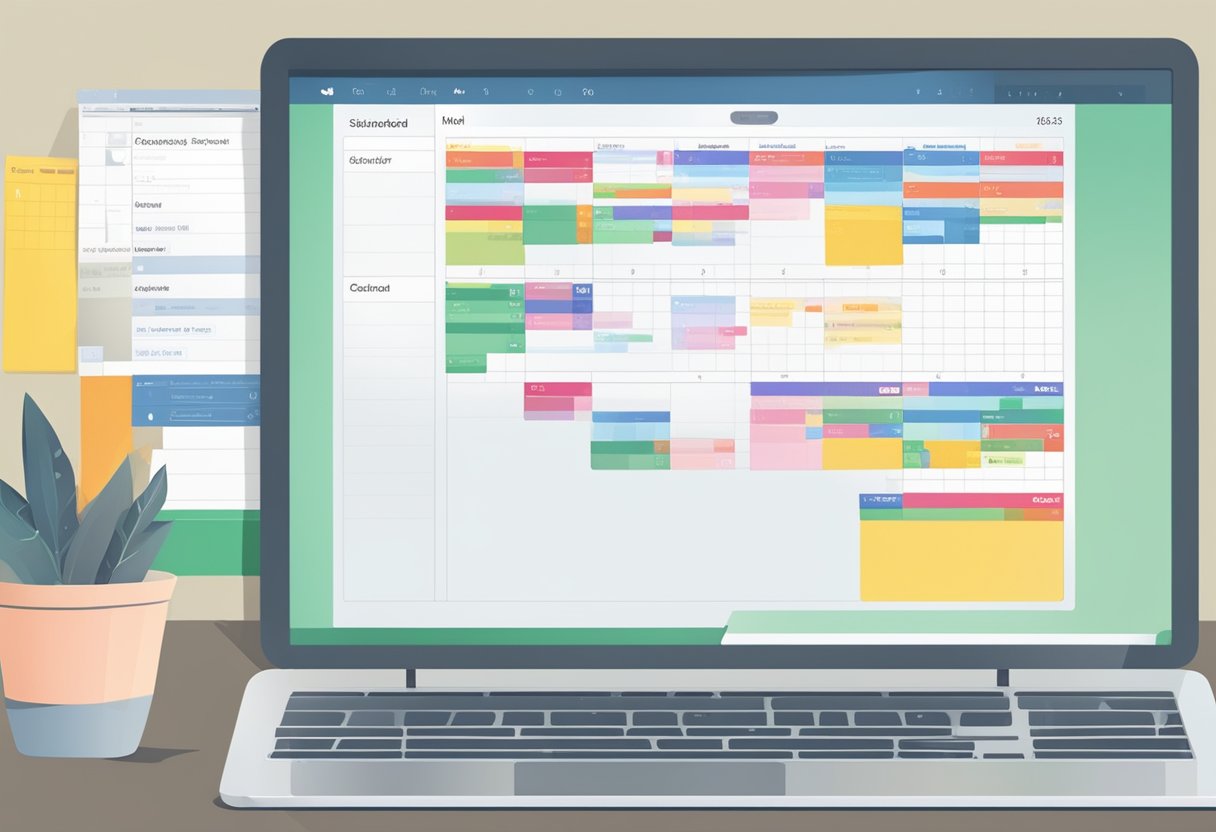
Automation tools simplify the process of sending bulk calendar invites. They help users save time and ensure accuracy. Understanding the options available and how to set them up effectively is crucial for enhancing productivity.
Comparing Automation Options
Several automation tools exist for sending bulk calendar invites. Popular options include Microsoft Outlook and various dedicated platforms like Let's Calendar.
- Microsoft Outlook: Allows users to create many invites at once using its group feature. This is effective for smaller teams.
- Let's Calendar: Offers a user-friendly interface tailored for mass invitations, perfect for webinars and conferences.
Choosing the right tool depends on specific needs, such as the number of invites needed and integration with other applications.
Setting Up Automation Workflows
Setting up an automation workflow can be straightforward. A typical process involves these key steps:
- Choose the Tool: Select an automation tool based on the comparison.
- Create an Event Template: Design a standard invitation template to maintain consistency.
- Import Contacts: Upload the list of recipients to the chosen platform.
- Schedule the Sending Time: Set specific dates and times for when the invites should go out.
- Test the Process: Send a few test invites to ensure everything works as intended.
By following these steps, users can efficiently send multiple invites without losing track of details. Automation reduces manual errors and enhances attendance at scheduled events.
Maximizing Attendee Turnout
Effective strategies can significantly improve attendee turnout for events. Timing invitations and utilizing reminders are essential tactics in achieving a higher number of participants.
Timing Your Invitations
The timing of sending invitations plays a crucial role in final attendance numbers. It is best to send invites well in advance, typically 2 to 4 weeks before the event. This gives attendees time to adjust their schedules.
Consider the day and time of sending invites. Avoid weekends when people are less likely to check their emails. Mid-week, particularly Tuesday or Wednesday, is often ideal.
Data shows that emails sent in the morning, between 10 AM and noon, tend to have higher open rates. Therefore, selecting these timeframes can boost engagement.
Leverage Reminders and Follow-Ups
Reminders can significantly enhance participation for virtual events. Sending a reminder 1 week before the event is effective, followed by another a day prior.
These reminders should be clear, highlighting key details like date, time, and access links. Personalizing messages can also add a touch of significance, encouraging attendees to feel more connected.
Follow-ups post-event can help maintain the momentum. Sending thank-you emails with a brief survey can engage them further and gather feedback for future events. These strategies ensure participants are well-informed and motivated, thereby increasing turnout.
Sending Invitations via Email Campaigns
Email campaigns are an effective way to send bulk calendar invites. Properly crafted invitations ensure clarity and engage recipients. Using Bcc to keep email addresses private is also crucial when sending invitations to large groups.
Crafting Email Campaigns for Invites
Creating an email campaign for invites requires careful planning. Start with a clear subject line that states the event and its purpose. This captures attention right away.
Next, include all important information in the email body. This should cover the event date, time, location, and any special instructions. A well-structured list can enhance readability:
- Event Title
- Date and Time
- Location
- RSVP Details
Also, add a call to action button or link urging recipients to confirm attendance. Using social proof, like testimonials from past attendees, can make the invite more appealing. Ensuring the email design is simple and mobile-friendly is important, as many recipients check emails on their phones.
Using Bcc to Send to Multiple Recipients
When sending invites to many people, using Bcc (Blind Carbon Copy) is recommended. This feature hides recipients' email addresses, maintaining their privacy. It prevents spam and protects personal information.
To use Bcc, add all email addresses to the Bcc field. The recipient will see only their own email address, which creates a more personal touch.
While sending, ensure the content remains consistent. Each person receives the same information without unwanted replies. This is particularly useful for large groups, as it prevents overwhelming inboxes. Always test the email before sending it out to ensure proper formatting and functionality of links.
Best Practices for Managing Responses
Managing responses effectively ensures that the organizer can understand attendance and engage meaningfully with attendees. By tracking RSVPs accurately and connecting with the registered audience, the meeting becomes more productive and organized.
Tracking RSVPs
To manage responses, it is essential to track RSVPs efficiently. Organizers can use tools within calendar software like Outlook or Google Calendar to monitor who has accepted, declined, or may attend the meeting.
Creating a simple table can help visualize attendance:
| Attendee Name | RSVP Status |
|---|---|
| John Doe | Accepted |
| Jane Smith | Declined |
| Mark Johnson | Tentative |
Regularly updating the RSVP list allows organizers to identify engagement levels. Knowing the number of attendees helps in planning logistics, such as seating arrangements or materials needed.
Additionally, creating reminders for attendees who have not responded can improve overall attendance and engagement.
Engaging with Registered Audience
Engagement with the registered audience starts well before the meeting. After individuals RSVP, an organizer should send a confirmation email that includes meeting details and the agenda. This keeps attendees informed and ready.
During the lead-up to the meeting, consider sending updates or preliminary materials related to the topic. This encourages engagement and ensures attendees come prepared.
Organizers might also create a space for questions or topics they would like to discuss. By allowing input, they foster a more interactive and productive meeting environment, increasing the likelihood of participation from attendees.
Troubleshooting Common Issues
When sending bulk calendar invites, there can be several challenges that arise. Addressing these problems promptly is essential to ensure successful scheduling and effective communication. Two common issues include non-delivered invites and scheduling conflicts that require resolution.
Handling Non-Delivered Invites
Non-delivered calendar invites can frustrate users. To troubleshoot this issue, first, verify that the email addresses entered are correct. Typos in email addresses can lead to failed deliveries. It is advisable to double-check this information before sending.
Next, check the internet connection. A weak or unstable connection can prevent invites from being sent. Lastly, ensure that the email account is configured correctly in the calendar application. Misconfigured settings may hinder the sending process. Clearing the Outbox can also help if invites are stuck there.
Resolving Scheduling Conflicts
Scheduling conflicts often occur when multiple calendar invites overlap or when recipients already have prior commitments. Users can address these conflicts by reviewing the recipients' availability before sending invites. Checking the calendar for potential overlap helps avoid confusion.
Another useful step is to use the scheduling assistant feature available in most calendar apps. This tool helps identify free time slots for all attendees. If timing issues arise, suggest alternative meeting times. Communicating proactively can prevent misunderstandings and ensure that meetings occur smoothly.
Leveraging Free Trials for New Tools
Trying out new tools during a free trial can help users determine if the software meets their needs. They can assess how well the tool handles bulk calendar invites and automation features before making a commitment.
Evaluating Features During Free Trials
During a free trial, users should focus on key features such as sending bulk calendar invites and the efficiency of automation. It is essential to test the platform's ability to manage multiple invites simultaneously.
Users can create a sample event, add recipients, and review the invitation process. Evaluating customization options for invites can reveal how adaptable the tool is for different events.
Additionally, checking for integration with other calendar systems ensures smooth operation. Users should also assess the user interface for ease of navigation. This makes the tool more effective in streamlining scheduling tasks. By closely examining these elements, they can make an informed decision about the tool's long-term value.
Tracking the Success of Bulk Invites
Analyzing the effectiveness of bulk calendar invites is crucial for improving future events. Focus on specific metrics and feedback to better understand attendee engagement and turnout rates.
Metrics for Measuring Success
To evaluate the success of bulk calendar invites, key metrics should be tracked, including:
-
Open Rate: This shows how many recipients opened the invite. A higher open rate indicates interest.
-
RSVP Rate: This measures how many invited attendees confirmed their participation. A good RSVP rate reflects effective communication.
-
Attendee Turnout: This is the ultimate goal. Tracking how many attendees join the event helps assess the impact of the invites.
-
Engagement during the Event: Feedback on participation and interaction can inform on how well the event met expectations.
Using these metrics, organizers can create visual dashboards or tables to present this information clearly. By regularly reviewing these figures, they can refine their strategy for sending bulk invites.
Learning from Past Events
Reviewing feedback from previous events can reveal valuable insights. Important steps include:
-
Surveying Attendees: After an event, collecting feedback through simple surveys can identify what aspects worked well and what didn’t.
-
Analyzing Trends: Comparing metrics across different events helps in understanding patterns in attendee behavior. For example, noting if certain days or times yield higher turnout.
-
Adjusting Strategies: Based on insights, organizers can tweak their invite strategies. This might involve changing the message, format, or timing.
By learning from past events, organizers can make informed decisions that boost future attendee turnout and ensure more successful meetings.
Frequently Asked Questions
This section addresses common queries about sending bulk calendar invites. It provides clear steps and tips for using popular calendar services like Google Calendar and Outlook, as well as other useful tools.
What are the steps to send multiple calendar invites at once using Google Calendar?
To send multiple invites in Google Calendar, one must first create an event. After filling in the event details, the person should add email addresses of all attendees in the "Add guests" section. Once completed, selecting "Save" will send out the invites.
How can one automate the process of sending calendar invitations?
Automating the process can be done using or integrating tools like Zapier or Google Scripts. These tools can be set up to automatically send invites based on specific triggers, such as added events in a master calendar.
Can I include multiple time and date options in a single meeting invite?
Yes, utilizing the "Find a time" feature in Google Calendar allows users to propose several options for meeting times. This feature helps participants choose a time that works for everyone, reducing back-and-forth communications.
What is the best way to send out mass invites through Outlook's email service?
To send mass invites in Outlook, one can use the calendar feature. After creating an event, adding multiple email addresses in the invite field allows it to reach all intended recipients. It is also important to check the option to send invites to all attendees.
Is there a free tool or service that facilitates sending bulk calendar invitations?
Yes, tools like Bulk Calendar provide a free account option to send multiple calendar invites quickly. These platforms often include user-friendly interfaces to help manage large lists of recipients effectively.
How can someone efficiently manage sending calendar invites to a large number of people online?
Efficient management can be achieved by using dedicated calendar tools that allow bulk actions. Organizing attendee lists into groups and using templates for invitations can streamline the process, saving time when sending numerous invites.